Register for the Next Webinar (We'll notify you via email)
This Tip of the Week covers topics including:
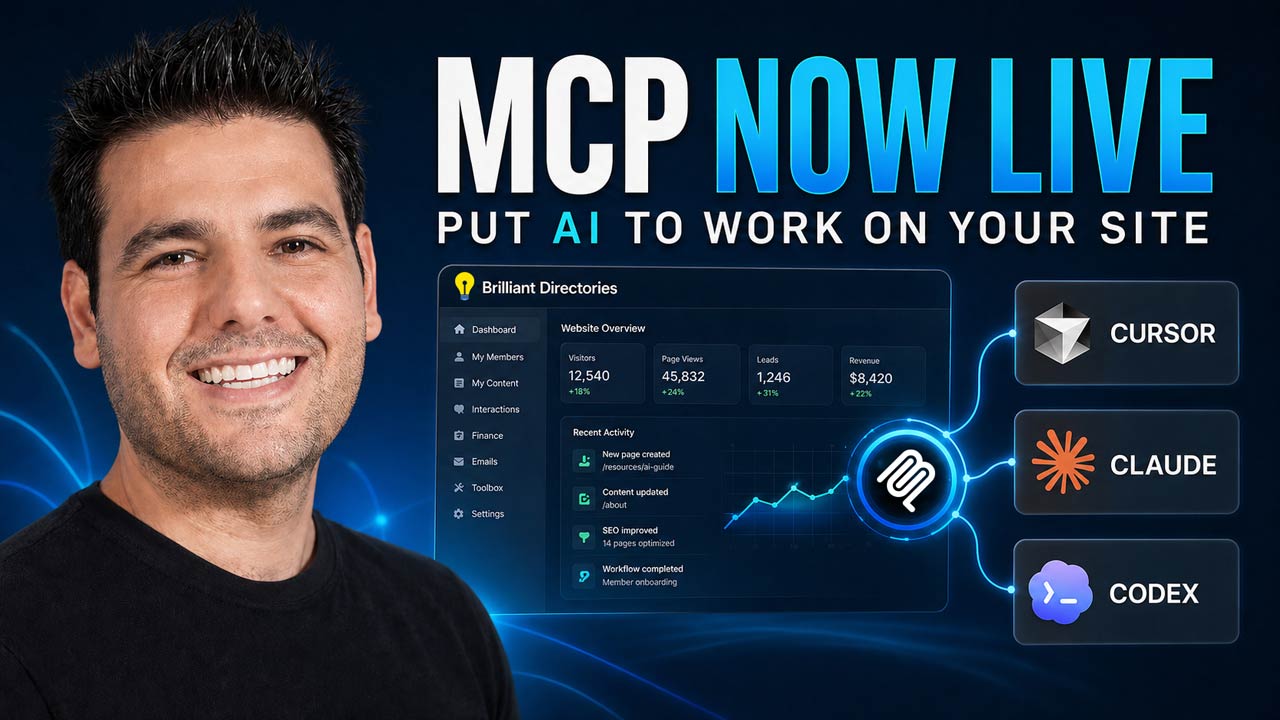
- 00:00 - BD MCP: Let AI Work on Your BD Site (Intro)
- 00:59 - BD’s New MCP: Claude Code + More!
- 02:04 - What AI Can Do For You
- 03:01 - Why This Is a Big Deal
- 03:46 - Getting Started Is Easier Than It Sounds
- 04:51 - Let’s See It In Action – View MCP Repo

 AI-Generated Transcript – Please excuse any inaccuracies
BD MCP: Let AI Work on Your BD Site (Intro) (00:00:00)
- The presentation will cover what MCP means and will be explained in simple terms, making it easy to understand, even if it initially sounds complicated (00:00:07).
- The goal is to keep the presentation simple and move through the slides quickly to demonstrate how MCP works in action, showing that it is simpler than it sounds (00:00:25).
- MCP is a new way to work on a BD site, and it changes the relationship with AI, which has typically been used for chatting and getting ideas on the side (00:00:36).
- Currently, AI tools like BD Butler can make changes to pages and newsletters being edited, but the MCP presentation will show a new development in this area (00:00:48).
- The presentation aims to distill down complex information into simple terms, allowing viewers to understand how MCP can be used on their BD site (00:00:13).
BD’s New MCP: Claude Code + More! (00:00:59)
- The AI tool can perform actual work within a site, and the Model Context Protocol (MCP) serves as the connection layer between the AI tool and the site, enabling the AI to take actions on the site (00:00:59).
- The connection between the AI tool and the site is crucial, as it allows the AI to access and work with various parts of the website, including pages, categories, members, forms, and widgets, when connected using an API key (00:01:10).
- The site owner has control over what the AI can access through permissions, which are defined when connecting the AI tool to the site, determining the level of access and functionality granted to the AI (00:01:31).
- The process of utilizing the AI tool involves connecting it to the site, defining access permissions, and instructing the AI on the tasks to be performed, marking a shift in the role of AI from being a helpful side tool to a integral part of the workflow (00:01:46).
- The MCP allows for a more integrated and functional use of AI, enabling it to go beyond providing helpful information and instead perform real work within the site's workflow, as seen with the transition from BD Butler to the new capabilities (00:01:56).
What AI Can Do For You (00:02:05)
- With the connection in place, the conversation with the AI becomes more practical, allowing users to ask the AI tool to create various site structures such as pages, categories, tags, and more (00:02:05).
- The AI tool can be asked to draft content, including posts, articles, SEO content, and other types of page content, making it a useful resource for content creation (00:02:12).
- Users can also ask the AI to update existing elements on their site, such as forms, widgets, menus, and manage data including members, leads, reviews, and other information (00:02:19).
- One of the key benefits of using AI is that a single request can trigger multiple actions in sequence, enabling users to think in terms of outcomes rather than individual clicks in the admin area (00:02:26).
- This capability allows users to define the desired outcome for their site and ask the AI to help them achieve it, making the AI a powerful tool for site management and development (00:02:40).
Why This Is a Big Deal (00:03:01)
- The reason this matters is that it changes how quickly good ideas can turn into actual updates on a site, as it removes a lot of friction that previously existed, allowing for faster implementation of ideas (00:03:01).
- A lot of website improvement work is not necessarily difficult, but it can be repetitive and time-consuming, which makes it easy to put off when there are other tasks to attend to (00:03:09).
- This new development really starts to remove a lot of that friction, enabling users to improve thin pages, build out content, organize site structure, and handle batches of repetitive updates with the help of AI (00:03:20).
- AI can now help do the actual work instead of just giving a checklist of items that should be done, which means users still decide the strategy and set the direction, but the distance between the idea and execution gets a lot shorter (00:03:34).
Getting Started Is Easier Than It Sounds (00:03:47)
- The setup process for connecting Claude (language model) and Cursor (user interface) to a membership or directory site is more straightforward than it sounds, involving choosing an AI tool, connecting the site to the tool using the website's URL and API key, and enabling the desired permissions (00:03:47).
- To get started, it is recommended to begin with a simple task to see the AI tool in action, and then build and expand from there once a better understanding of its capabilities and how it can be integrated into the existing workflow is gained (00:04:05).
- The same capability will also be available in BD Butler, making it possible to use the AI tool within the website's admin area without needing external tools, and this feature is expected to make the process even more powerful and simple (00:04:24).
- Viewers have questions about the new feature, including whether BD Butler will be more interactive, and how to find the API key, which are being addressed to provide further clarification and guidance (00:04:43).
- The API key is a required component for connecting the AI tool to the website, and finding it is a crucial step in the setup process, with viewers such as Greg seeking information on how to locate it (00:04:49).
Let’s See It In Action (00:04:51)
- The goal is to go from zero to hero with the MCP, starting with the basics and then exploring how it can be utilized to make website growth more efficient and fun, by showing the setup and giving the AI tasks to handle various processes (00:04:51).
- The Claude (language model) app, a desktop app, is used to demonstrate the MCP's capabilities, such as creating a blog article, and it is able to talk to the site and perform tasks, including listing top categories and subcategories, although it has some known bugs (00:05:40).
- The Claude app can be used to automate tasks such as adding SEO content to specific pages, including a hero section, to help improve Google rankings, and it can identify pages that need enrichment and perform some of that enrichment (00:07:06).
- The setup process for the MCP starts with accessing the GitHub repository, where the necessary files and instructions can be found, and requires two main things: a Brilliant Directory site URL and the Brilliant Directories API key (00:08:06).
- The Brilliant Directories API key can be found in the admin area of the Brilliant Directories site, and a test site with no members or data can be used to demonstrate the A to Z setup of the MCP (00:08:29).
- A directory setup is initiated, and a fitness trainer directory is created, with the initial site setup running in the background, including finding fitness trainers now as the directory (00:08:48).
- An API key is generated in the developer hub, and it is given a nickname, in this case, "Claude", and the key is saved for security purposes, as it will only be visible once (00:09:36).
- The setup of the new site is completed, and the URL is obtained, with a pro tip provided to ensure there is no forward slash at the end of the URL and to include the HTTP part at the front (00:10:18).
- The connection process involves using the URL and API key, and the option to use "Cursor (user interface)" is introduced as another way to interact with AI, with the process of loading up Cursor and creating a web page initiated (00:10:47).
- Once in Cursor, a conversation is started, and the Cursor library is accessed, where the directory can be searched, and the "Add to Cursor" option is used to connect the directory to Cursor, requiring the API key and site URL (00:11:31).
- The API key and site URL are entered into Cursor, and the connection is established, providing access to various tools and actions, such as updating, creating, and deleting members, as well as creating posts, with 173 tools available (00:12:20).
- It is noted that an important step was skipped during the API key creation process, which will be addressed later (00:12:46).
- To connect Claude (language model) or Cursor to a membership or directory site using BD MCP, updating permissions is necessary, and it is recommended to pick and choose the permissions to avoid potential issues, such as accidental deletion of content due to miscommunication with the AI agent (00:13:04).
- After connecting the application, it is necessary to close it fully and then reopen it to complete the connection process, which is a one-time step (00:13:51).
- Once connected, the AI agent will confirm actions with the user before taking them, and the connection process is relatively easy, especially when using the one-click setup option in the directory (00:14:13).
- For more advanced users, an alternative method of connecting the application involves going to file preferences, Cursor (user interface) settings, and adding a new MCP by pasting a snippet of code with the API key and URL (00:15:17).
- The connected AI agent can be used to perform various tasks, such as creating new categories and subcategories, and deleting existing ones, all of which can be done remotely (00:15:46).
- Users have the option to choose between Claude and Cursor, or any other AI tool that supports MCP, to connect to their membership or directory site (00:17:15).
- The AI agent will ask for confirmation before taking actions, and it may update existing categories instead of deleting them, depending on the user's input and the specific task being performed (00:17:24).
- The process involves using an AI tool to search the web and find members to list in each subcategory, requiring them to have a website, email, and photo, and then writing a good SEO "about me" section for each to help their listings rank on the site (00:17:35).
- The AI tool is asked to find personal trainers or fitness trainers that fit in each category, and it provides a proposed plan, which is then allowed to proceed without being read (00:18:36).
- The AI tool used is Claude (language model), and the platform allows users to choose their preferred AI model, with the option to give it web search access and other features (00:19:15).
- The process of loading the site with listings using the AI tool is an alternative to using business data, which typically includes brick-and-mortar businesses with physical addresses, and is useful for finding freelancers or professionals without a physical business presence (00:19:49).
- The AI tool can quickly research and find candidates to pre-populate the site with, or use for cold outreach, and can also perform tasks such as copying web pages or comparing member numbers between sites (00:20:08).
- To connect Claude to the site, the user goes to the Claude desktop app, closes it down, and then reconnects to it with the new site, following instructions to edit the config and not use settings connectors (00:20:45).
- The user can connect multiple sites to the same AI agent or desktop platform, allowing them to work on different sites with the same AI chatter, and can even transfer content between sites or compare member numbers (00:21:41).
- To set up Claude, navigate to the settings, developer hub, and click on the edit config, which will open the Claude desktop config file, regardless of whether you have a Windows or Mac, and this file can be opened with Notepad or its equivalent on Macs (00:22:26).
- The config file may already contain some information, such as preferences, and if it is empty, you can copy and paste the required information, including your API key and website URL, and then save the changes (00:23:10).
- If the config file is not empty, you should not delete the existing content, but instead, add a comma and the new information, making sure to place the comma after the opening bracket and before the new content, or alternatively, delete the last bracket and paste the new content with a comma (00:24:12).
- After updating the config file, you need to save the changes, close the application, and reopen it to establish the connection, and then you can verify the connection by going to the developer tab, where you should see that it is running and indicated in blue (00:25:25).
- Once the connection is established, Claude (language model) will have the necessary keys to access and make changes to your site on your behalf, allowing for further interactions and customization (00:25:32).
- The process may vary depending on the specific content of the config file, and it is recommended to follow the instructions carefully to avoid any issues or errors (00:25:45).
- After completing the setup, you can start using Claude and explore its features and capabilities, including chatting with it and using it to manipulate and make changes to your site (00:26:12).