Register for the Next Webinar (We'll notify you via email)
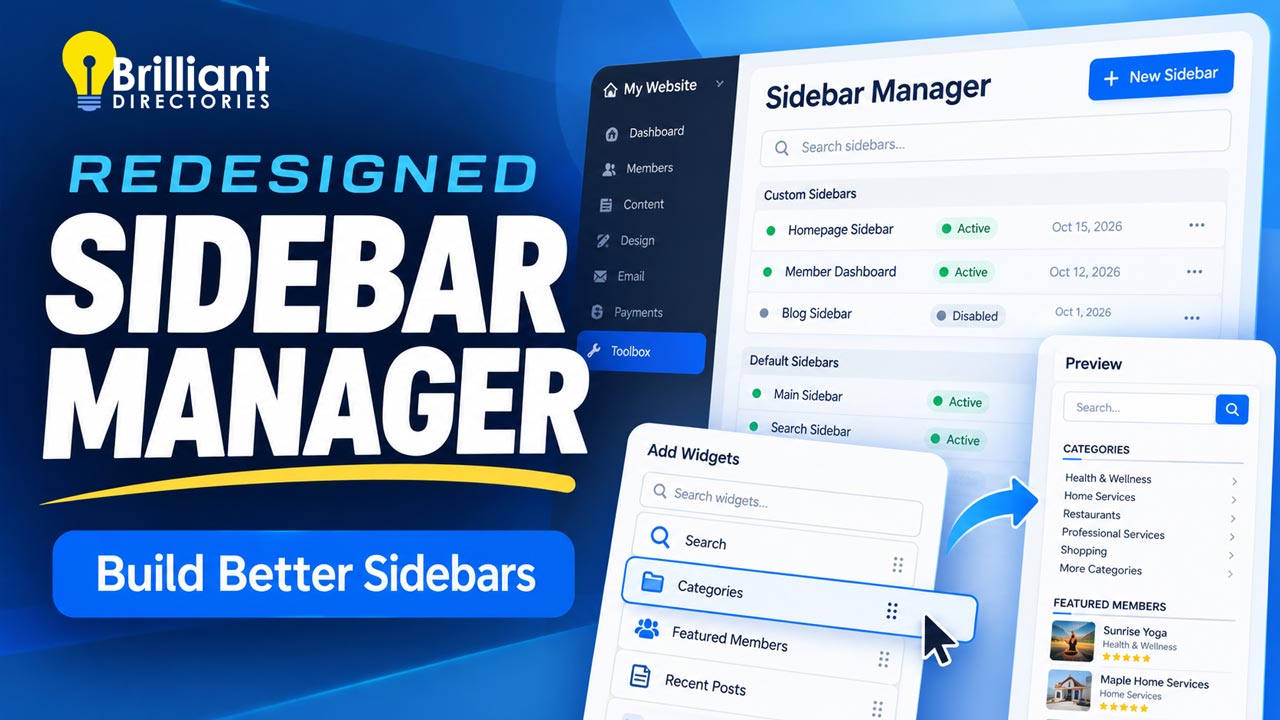
Sidebars are the columns of helpful extras that sit next to your page content: a search box, a newsletter sign-up, a banner ad, or a list of featured members. They do a lot of quiet work on a Brilliant Directories website, and now they're much easier to manage. The redesigned Sidebar Manager puts every sidebar on your site in one clean screen, with a live preview so you can see exactly what visitors will see before you save.
The video above walks through the whole thing in about a minute. Here's a quick recap of what's new and how to use it.
Where to Find It
In your admin area, go to Toolbox » Sidebar Manager. You'll see two lists:
- Custom Sidebars – the ones you've made for your site, shown at the top with their status (Enabled or Disabled) and the dates they were created and last updated.
- Default Sidebars – the ones that come with your website, listed just below.
One search box covers both lists, so you can find any sidebar by name, shortcode, or ID. You can also filter by status or by date.
Create a New Sidebar in Seconds
- Step 1 – Click New Sidebar.
- Step 2 – Give it a name and click Save.
- Step 3 – Your new sidebar opens, ready for widgets.
Add and Arrange Widgets
Use the Add Widgets to Sidebar search to find a widget by name and add it. New widgets go to the bottom of the list. To change the order, simply drag any row up or down, then click Save. Changed your mind? Click Discard and everything goes back the way it was.
Hover over any widget to copy its shortcode, open it for editing, or remove it with the X.
See It Before Your Visitors Do
The Preview panel shows your sidebar using your site's own colors, fonts, and styling, including changes you haven't saved yet. Click the enlarge icon for a closer look. No more saving, opening a new tab, and refreshing just to check how things look.
Good to know: some widgets only appear on certain pages, so a few may not show up in the preview even though they're in the sidebar.
Clone, Disable, or Delete
The Actions menu gives you a few handy options:
- Clone Sidebar – makes a copy with all the same widgets. It's the fastest way to build a new sidebar that's similar to one you already have.
- Disable Sidebar – turns a sidebar off without losing it. Disabled sidebars are clearly marked, and you can turn them back on anytime with Enable Sidebar.
- Delete Sidebar – removes a custom sidebar for good. This can't be undone, so disabling is the safer choice if you're not sure.
- Copy Shortcode – grab the sidebar's shortcode to place it on a page or inside a widget.
Need to change several at once? Check the boxes next to them and use Select Action to enable, disable, or delete them together.
Want to Change a Default Sidebar?
Click Customize on any default sidebar, make your changes, and save. Your site then uses your custom copy in place of the original, and the default stays safely in the list.
Save History: See What Changed and Who Changed It
Choose Actions » Save History to see a clear record of every change: when the sidebar was created and saved, which widgets were added or removed, when it was enabled or disabled, and who made each change. Reorders are shown as a simple numbered list, so you can see the before-and-after at a glance. It's a big help when more than one person manages your site.
Why It Matters
- Less guesswork – the live preview shows you the result before you commit.
- Fewer mistakes – disable instead of delete, discard unsaved changes, and check Save History anytime.
- Faster updates – clone a sidebar you like instead of starting from scratch.
- Better pages – put the right search forms, sign-ups, and ads in front of the right visitors to help grow engagement and revenue.
Get Started
Log in to your admin and head to Toolbox » Sidebar Manager to try it out. For a full walkthrough of every option, see the Sidebar Manager support article. Want to see what else is new? Check out our latest monthly changelog.
New to Brilliant Directories? Start your free trial, compare plans, book a demo, or contact our team with any questions. For more tips and tutorials, visit the Brilliant Directories blog.