Register for the Next Webinar (We'll notify you via email)
This Tip of the Week covers topics including:
- 00:00 - Intro: Connect Brilliant Directories to OpenAI Codex
- 02:17 - What You Need to Get Started
- 04:15 - Adding BD as an MCP Server
- 05:35 - Creating Your BD API Key
- 08:07 - Setting Permissions and Testing the Connection
- 11:16 - Adding Categories and SEO Content with AI
- 14:21 - Creating Member Listings from Web Research
- 18:10 - Building an Email Newsletter with Codex
- 21:15 - Updating the Newsletter Design and Style
- 25:34 - Final Preview and Wrap-Up
Connect OpenAI Codex to Brilliant Directories: The Complete Setup Walkthrough
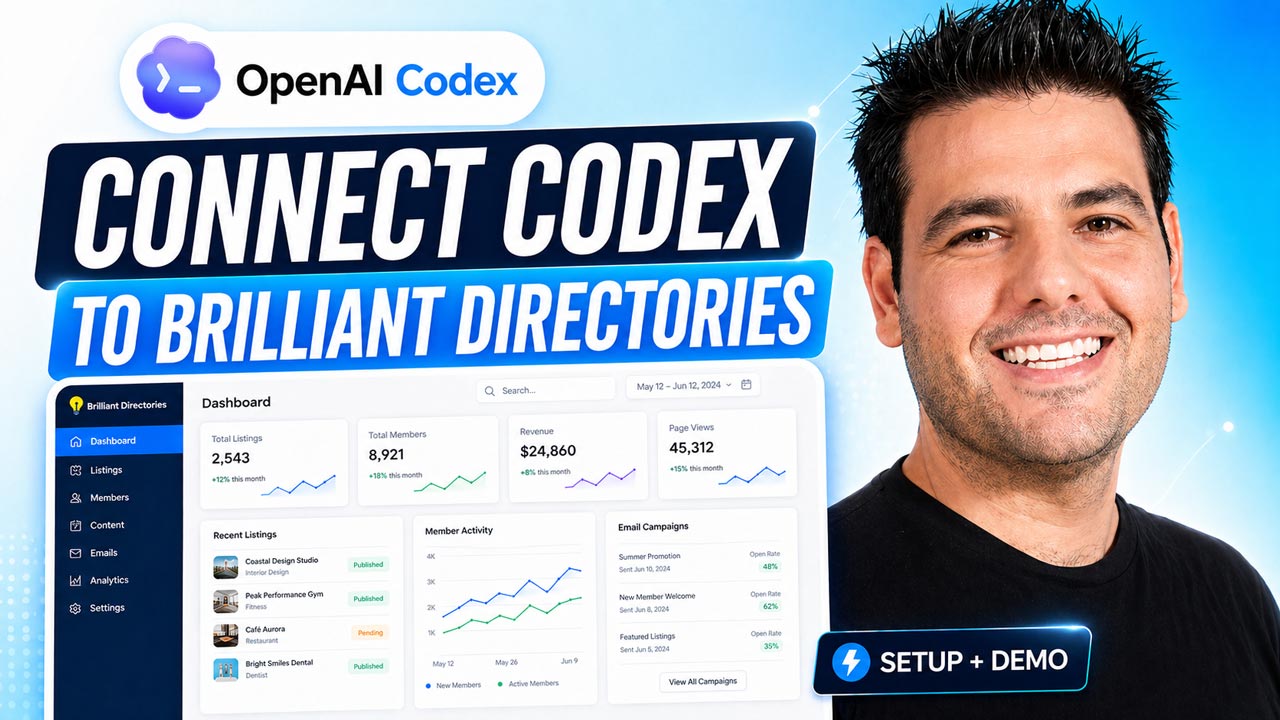
If you’ve been watching what Claude Code can do with the BD MCP server — live edits, bulk SEO uplift, autopilot category and listing creation — and you’d rather use OpenAI’s Codex instead, this video walks you through the entire connection process end-to-end. The capabilities are nearly identical: chat with an AI, watch it update your live BD site in real time, build categories, populate listings, write SEO content, design email newsletters, and more. The only meaningful differences are the setup steps and the AI model behind the curtain.
Below is the full who, what, where, why, and how — with the security details, granular permissions, and the practical use cases demonstrated in the video.
Codex or Claude Code — Which Should You Use?
Short answer: both work, the choice is largely personal preference. Both have free tiers that work with Brilliant Directories, and paid tiers that allow longer running conversations. A few honest observations from the video:
- Codex feels slightly clunkier in interaction style.
- Claude Code feels smoother and more polished today.
- Both achieve the same goals — categories, listings, SEO content, email templates, page updates, member audits.
- If you already have an OpenAI subscription, Codex is the natural choice. If you’re comparing fresh, see also the Claude & Cursor setup guide to weigh both.
You can run both in parallel and switch between them. Many BD operators do exactly that.
What You Can Do Once Codex Is Connected
Once your BD site is wired up to Codex via the MCP, the AI can:
- Find pages on your site that need more SEO content and rewrite them.
- Add new categories and subcategories (e.g., “HIIT Training,” “Nutrition Coaching”) and generate SEO content for each.
- Research the web for real businesses in a niche and create member listings — complete with profile photos, websites, and AI-written bios.
- Build email newsletters from scratch — welcome emails, member spotlights, search-page CTAs, even Outlook-safe gradient backgrounds.
- Update designs in any vibe you specify (“Squarespace style,” “Equinox gym aesthetic,” etc.).
- Continuously enrich the site in the background while you’re not actively working, using a “run-reloop” pattern to keep producing new categories, content, and assets.
For a real case study of this kind of workflow at scale, see how Gerald Griffith compressed a 90-day growth plan into a single day.
Who This Setup Is For
- BD site owners who already use ChatGPT and want their AI to actually do things on the site instead of just generating drafts.
- Solopreneurs and small teams who can’t afford a full developer or content team but want to keep shipping.
- Multi-site operators — you can connect multiple BD sites and switch between them via nicknames.
- SEO-driven directory owners looking to fix thin pages at scale (companion read: AI SEO on Autopilot).
- Anyone who’d rather chat than click — the workflow replaces a lot of admin-area clicking with plain-English instructions.
What You Need Before You Start
Two things:
- A Brilliant Directories site. Start a free trial if you don’t have one yet.
- An OpenAI account with the Codex desktop app installed (Windows or Mac).
That’s it. The connection is local to your computer — nothing is exposed publicly. Install the Codex app on a personal device only, never a shared or public machine.
How to Set It Up — Step by Step
1. Download and Install OpenAI Codex
Grab the desktop app for your OS and install it. When you launch it, you should see the AI chat interface. Try a quick “how are you?” to confirm the app is working before connecting it to your site.
2. Open MCP Server Settings in Codex
In Codex, go to File → Settings → MCP Servers. This is the screen where you tell Codex which platforms it’s allowed to talk to. The official BD MCP setup steps live in the BD GitHub repository — that’s the source of truth, and it includes a table of contents covering Codex, Claude Desktop, Claude Code, and Cursor.
3. Add the BD MCP Server
Click Add Server and select the Streamable HTTP tab. Then:
- Nickname: something memorable, like “My Fitness Site” or “Test Site.”
- URL: paste the BD MCP URL from the GitHub instructions.
- Bearer token: skip this field (BD doesn’t use one).
4. Generate Your BD API Key
In your BD admin area, go to Developer Hub → Generate API Key. Two important rules:
- The key is shown only once. Copy it immediately and paste it where you need it.
- Treat it like a password. If it’s ever compromised, delete it and generate a new one. You can have multiple keys active at the same time.
In Codex, add two headers:
- Header 1 — API key: the value you just copied. No spaces in the header key name.
- Header 2 — Website URL: your full BD site URL, including
https://, thewww.if you use it, and the correct domain extension (.com,.co.uk, etc.). No trailing slash.
Click Save.
5. Set Granular Permissions
This is the safety step most people skim — do not skip it.
Go to your API key’s permissions screen in BD’s Developer Hub. You’ll see a list of standard endpoints and advanced endpoints, each with checkboxes for actions like create, update, and delete.
- Maximum capability: check every box. The agent can fully create, update, and delete on your site.
- Recommended for most operators: uncheck delete on advanced endpoints until you’ve built confidence with the AI’s output. Update and create are forgiving; delete is not.
- You can change this any time. Tighten or loosen permissions per key as you go.
6. Restart Codex and Test the Connection
Fully exit Codex (Task Manager → End Task on Windows, Quit on Mac) and reopen it. Refresh the page in Codex to see the saved server. Ask something low-risk like:
“What are the subcategories under Personal Trainers on my site?”
Codex will ask permission the first time it calls each MCP tool — allow them, and you may also be able to flip a setting to allow all permissions at once. Once it returns the right answer, the connection is verified.
Use Cases Demonstrated Live in the Video
Adding Categories With SEO Content
Prompt the AI to add new subcategories that make sense for your niche — not just any category, but ones with real search demand — and to write SEO-optimized content for each. In the video, “HIIT Training” and “Nutrition Coaching” were added under Personal Trainers, complete with titles, custom content, and a foundation for ranking.
Creating Member Listings From Web Research
The AI can browse public information online, find real businesses in your niche, and create member listings on your site — including websites, profile photos, and SEO-friendly bios. A practical tip from the video: use a higher membership plan (e.g., Plan 3) for these AI-created listings so they go live without firing welcome emails. You can adjust plans and notification settings later.
Building Email Newsletters
One of the more impressive demos: ask Codex to build a welcome newsletter that spotlights a member, links to category search pages, uses stock images, and includes a strong hero title plus a final CTA. The AI generates a real email template — named, saved, with an Outlook-safe gradient background — ready to send.
Then iterate by referencing styles you like:
- “Use a 50/50 split media-text alternating layout.”
- “Make it feel like Squarespace.”
- “Give it Equinox gym energy — clean, premium, sparse.”
- “Replace the first image with a friendly trainer helping an older person work out.”
The AI re-renders accordingly. Pair this with BD Butler AI for landing pages and the entire site — emails, pages, listings — can be AI-driven.
Continuous Background Enrichment
The “run-reloop” pattern lets Codex keep working on your site while you’re away — finding pages that need more content, suggesting complementary categories, building landing pages, drafting newsletters. Combined with the techniques in AI SEO on Autopilot, you have a site that grows itself overnight.
Why This Workflow Matters for Directory and Membership Sites
- Speed. Tasks that took days now take minutes — in plain English, not code or admin clicks.
- Cost. No outside developer or copywriter for the bulk of execution. (Cost lens: Platform vs Custom Build.)
- SEO depth. Filling out empty category pages, location combos, and member profiles is exactly what Google — and AI search — reward.
- Trust signals. Polished newsletters, populated categories, and rich profiles make a young site look established. (See: SSL trust signals.)
- Live execution. Codex doesn’t draft and wait — changes go to your site immediately through the MCP. No copy-paste loops.
Where to Be Careful
- Install Codex on a personal computer only. The MCP connection lives where it’s installed.
- Never paste your API key into screenshots, public chats, or shared docs. If you do, delete that key immediately and generate a new one.
- Start with delete permission disabled. Earn trust before granting full destructive capability.
- Scope prompts small at first. “Add one subcategory” before “restructure my taxonomy.”
- Use BD’s activity tracker and revision history to audit AI changes after the fact.
- Iterate the prompt. Early outputs may have formatting quirks (broken images, styles in the wrong place). Tell Codex what to fix — the workflow improves with feedback.
How to Get Started
- Start a free BD trial if you don’t have a site yet.
- Install OpenAI Codex on your personal computer.
- Follow the GitHub repo’s Codex section to add the BD MCP server.
- Generate your BD API key, set granular permissions, and add both headers in Codex.
- Restart Codex and test with a low-risk prompt.
- Move to small, scoped tasks — one category, one listing, one email — before scaling up.
- Compare the experience to Claude Code by also setting up Claude or Cursor, and use whichever fits your workflow.
Watch the Replay — and Then Try It Yourself
The full video sits at the top of this article, with chapter timestamps that jump you straight to each step — from MCP server setup, to API key creation, to permissions, to the live demos building categories, listings, and the newsletter.
Ready to put Codex on your own directory? Start a free trial, view pricing, or request a demo. Have questions? Contact our team, or browse more strategy and tutorials on the Brilliant Directories blog.
 AI-Generated Transcript – Please excuse any inaccuracies
Intro: Connect Brilliant Directories to OpenAI Codex (00:00:01)
- Brilliant Directories has enabled the connection of its site to OpenAI's Codex, allowing users to leverage AI capabilities to enhance their site, including finding pages that need more SEO content, creating posts, and searching the internet for listings (00:00:07).
- The connection to OpenAI's Codex is similar to the previously enabled connection to Claude Code, which was discussed in a video in the Brilliant Directories Facebook group, covering the capabilities and powerful functionality that comes with connecting a Brilliant Directories site to an AI agent (00:00:27).
- The AI chatbot can perform various tasks, such as adding categories, finding good categories to add, and creating emails, making it a powerful tool for managing a Brilliant Directories site, especially when used with dual screens or monitors (00:00:43).
- The choice between using Claude or OpenAI's Codex is subjective, and both options have their advantages, with free versions available that work with Brilliant Directories, and paid versions allowing for longer conversations with the AI (00:01:51).
- The video aims to demonstrate how to connect a Brilliant Directories site to OpenAI's Codex, showcasing the capabilities and features that come with this connection, including the ability to chat with the AI and see live updates on the site (00:01:56).
What You Need to Get Started (00:02:20)
- To get started with connecting OpenAI Codex to Brilliant Directories, two main things are required: a Brilliant Directories site and an API key, which will be created together (00:02:44).
- The connection process involves downloading the ChatGPT Codex application on a computer, which can be done for either Windows or Mac, and then installing it, which is considered step one (00:03:39).
- Once the application is installed, it will provide an AI chatbot on the screen, allowing for interactions such as asking "how are you?" before it starts making changes to the site (00:03:56).
- The instructions for establishing the connection are available on the GitHub page, which includes a table of contents with steps for different platforms, and the hardest part of the process is typically establishing the connection itself (00:03:12).
- After downloading and installing the ChatGPT Codex application, the next steps involve going to file settings and then MCP servers, as outlined in the provided instructions (00:04:10).
Adding BD as an MCP Server (00:04:16)
- To connect OpenAI Codex to Brilliant Directories, the first step is to go to file settings and select MCP server, where a connection to a platform for the AI agent is established, and this connection is private and only available on the device it is installed on (00:04:16).
- When making this connection, it is important to note that it is not available to everyone on the internet, and it is only accessible to the user privately on their device, making it safe to use on a private laptop or desktop, but not recommended for public computers (00:04:25).
- The process of adding a server involves clicking the "add server" button, which will display input fields, and following the instructions provided in the GitHub, including selecting the streamable HTTP tab and giving it a nickname (00:04:52).
- The GitHub instructions will guide the user through the process, including copying and pasting the URL for the MCP and handling the bearer token field, which in this case is skipped (00:05:05).
- The user will need to provide a nickname for their Brilliant Directories site, such as a test site or a specific site like a fitness site, to help identify the connection (00:05:13).
- The streamable HTTP tab is selected, and the URL for the MCP is copied and pasted into the input field, following the provided instructions (00:05:27).
Creating Your BD API Key (00:05:35)
- To connect to a site, two headers are required: the API key and the website URL, which is how the connection to the site is established, and the header key should have no spaces (00:05:35).
- The API key is private and should be kept secure, as having access to it allows for changes to be made to the site, and if it is compromised, it can be deleted and a new one created, similar to a login password (00:05:57).
- To create an API key, one needs to go to the Brilliant Directories admin area, click on the developer hub, and then click on generate API key, where multiple API keys can be created and managed (00:06:26).
- The generated API key is only shown once, so it needs to be copied and pasted where necessary, and if it is lost, a new one can be created and the old one deleted to maintain security (00:06:39).
- After creating the API key, another header is added with the website URL for the Brilliant Directories site, which can be obtained by clicking on "visit website" and copying the URL, making sure to include the full HTTP and remove any trailing slashes (00:07:11).
- The website URL should be copied carefully, including any subdomains such as "www" if present, and should end with the domain extension, such as .com or .co.uk, without any forward slashes (00:07:47).
- Once the API key and website URL are added, the changes can be saved by clicking the "save" button, completing the process of creating the API key and connecting to the site (00:08:03).
Setting Permissions and Testing the Connection (00:08:08)
- To ensure a proper connection, it is necessary to fully exit all tools and applications, which can be done by using the task manager to end the task, and then refreshing the page to see the created API key for Codex, which is a crucial step in setting up the connection (00:08:08).
- After creating the API key, it is essential to go to the permissions section and check all the boxes to give the agent full access to make amendments and changes to the site, including advanced endpoints, which will allow the agent to update, create, and potentially delete things on the site (00:08:40).
- The permissions can be granularly controlled, allowing users to uncheck certain actions, such as the delete action, for standard or advanced endpoints, providing flexibility in managing the agent's access to the site (00:09:14).
- Once the permissions are set, the Codex agent can be fired up again to test the connection, and it may ask for additional permissions, such as getting site info, which can be allowed to enable the agent to access and manage the site (00:09:46).
- The Codex agent can be used to perform various tasks, such as retrieving subcategories under a specific category, like personal trainers, and it may require allowing permissions multiple times initially, but there may be a setting to allow all permissions at once (00:10:38).
- The agent's ability to access and manage the site is demonstrated by its ability to find the site, retrieve categories, and perform other tasks, making it a powerful tool for building, editing, and growing a site with AI (00:10:56).
Adding Categories and SEO Content with AI (00:11:16)
- The process involves asking the AI to add two more subcategories that are popular and make sense, and then add SEO content to them so they can rank in Google, with the goal of adding more categories to the site through chatting with the AI (00:11:16).
- The AI is given permissions to access the site, and it searches for categories, looking for pages that have been converted to static pages with custom content, and it suggests categories such as "hit training" and "nutrition coaching" (00:12:14).
- The AI has live access to the site, allowing it to add new categories, such as "hit training" and "nutrition coaching", which are then visible in the admin section, although they currently have no members (00:12:46).
- The AI is compared to other tools, with Codex being described as feeling a little bit clunky compared to Claude code, which is seen as smoother and more slick, but both are effective in achieving the same goals (00:13:32).
- The AI creates content for the new pages, including a title and SEO content, which can be improved with better prompts, and the process can be continued to add more members and content to the site (00:14:01).
- The AI is then asked to find three members in the US, demonstrating its ability to perform various tasks and provide useful information for the site (00:14:19).
Creating Member Listings from Web Research (00:14:23)
- The system is being used to create member listings from web research, specifically for the "hit" category, by listing members with websites and profile photos, and writing good SEO content to help the new listings rank in Google faster (00:14:23).
- The tool has access to the internet, allowing it to find public information, list members on the site, and perform tasks such as writing spotlight blog articles and creating search pages with internal links and good SEO content (00:14:48).
- The system can work on its own to get the necessary assets without requiring manual clicking around in the admin area, and it is possible to bring this functionality into the admin area as well (00:15:35).
- The AI, referred to as Claude, understands the assignment and can get the task done even if not all the details are provided, and it can continually enrich the site by scouring it for pages that need enrichment and creating additional content (00:15:57).
- The system has a feature called "run reloop" that allows it to continuously develop the whole site by creating complementary content, categories, and more, while the user is not actively working on it, as long as it has the necessary permissions (00:16:33).
- The system is being used with membership plan three, which allows the listings to be active but keeps the welcome emails off, and it is possible to ask the AI to enrich the listings further if needed (00:17:01).
- The AI has successfully created three profiles and a new category on the site, with listings and an "about" section, and it is possible to ask it to create an email or perform other tasks (00:17:32).
Building an Email Newsletter with Codex (00:18:10)
- The goal is to build an email newsletter that welcomes new members, spotlights one of the members, and links to search pages on the site for the personal trainer category, using stock images and making it inviting with a strong hero title and a call to action at the bottom (00:18:10).
- The instructions for the email are somewhat vague, but the system is able to create an email template based on the given instructions, and it can be further iterated and edited (00:18:41).
- The system, similar to BD Butler, can perform tasks such as creating email templates, but it is more robust and can work continuously, even when not actively being used, to enrich the site with new content (00:18:56).
- The system is able to create an email template, give it a name, and add content, including a gradient background that is Outlook safe, as well as stock photos, and it can be edited and modified as needed (00:19:35).
- The created email template can be edited and modified, and the system can also be used to create new assets, such as landing pages, by fetching content from the site and making changes as needed (00:20:39).
- The system can work continuously to create new content, such as email templates, and can be allowed to perform tasks without constant supervision, making it a useful tool for building and growing a site (00:20:52).
Updating the Newsletter Design and Style (00:21:16)
- The system has access to the site, allowing it to create an email template for events, blog posts, or to spotlight members, and it can be instructed to use specific ones or the most recent ones (00:21:33).
- To update the newsletter design and style, instructions can be given to change the first image to a specific type, such as a friendly trainer helping an older person work out, and to use a split 50/50 media text alternating pattern (00:21:55).
- The system can also be instructed to give the newsletter a specific vibe, such as a Squarespace style or an Equinox gym style, and it will try to emulate that (00:24:26).
- The system's ability to make changes and updates is tested, and it is found to be able to make the requested changes quickly and accurately, such as changing the first image and using the alternating split pattern (00:23:43).
- The system's connection to the site allows it to add categories and members, and it can also be used to redirect pages and optimize them for SEO, with everything being a URL on the site (00:22:37).
- The connection to the system is made through GitHub, where a table of contents is available for different platforms, and it is a relatively simple process that involves copying and pasting an API key and website URL (00:24:49).
Final Preview and Wrap-Up (00:25:34)
- The design of the black button is considered elegant, with a square shape and negative spacing, making it less busy compared to the previous version with a lot of orange, and this design reflects the desired vibe and personality of the assets (00:25:34).
- The email can be previewed, and the logo shown in the preview was made using AI, demonstrating the capabilities of the platform (00:25:53).
- The content presented is a quick dive into new functionality in the platform, and feedback is requested in the comments to determine if this type of content is well-received (00:26:00).
- The audience is thanked for pushing for new updates, and they are encouraged to stay tuned for upcoming updates, with a final greeting wishing them a great day and a brilliant week (00:26:06).